
.jpg?width=3000&height=17&name=gold%20bar%20(thin).jpg "Gold Bar")

 By
By 
In most organizations, employees rarely need unlimited access to keys. Setting reasonable checkout limits can reduce key hoarding, improve security, and help ensure keyholders return keys promptly. Here’s how to set those limits in your KeyTrak system and some best practices for using them.
How to Set Up Checkout Limits
Administrators can restrict how many keys individual users or user roles may have checked out simultaneously by following these steps:
For specific users:
-
Navigate to Data Maintenance > Users.
-
Click the pencil icon next to the user you want to edit in the Edit column.
-
Click Next at the bottom of the Personal Information screen.
-
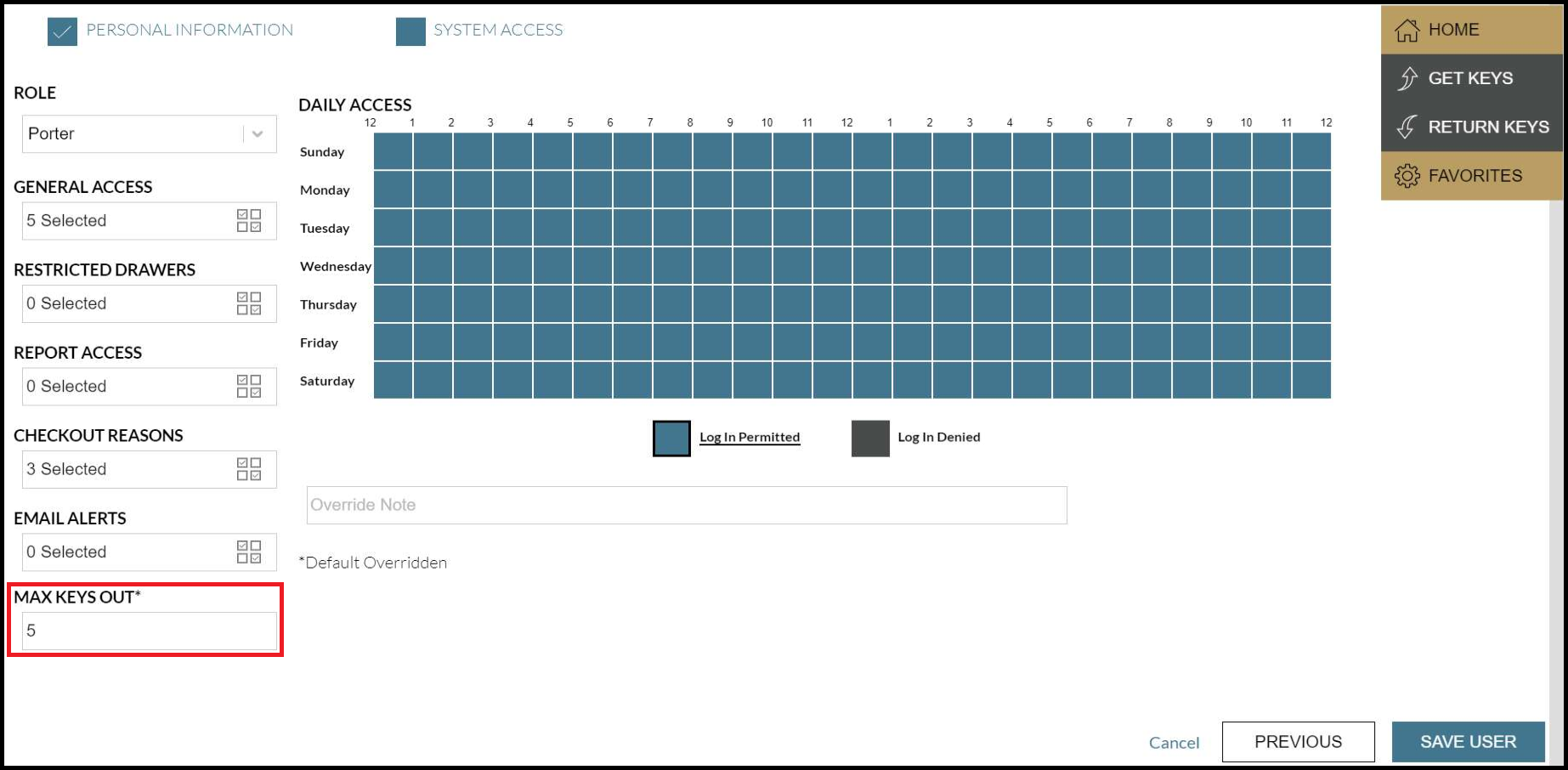
On the System Access screen, locate the Max Keys Out field.
-
Enter the number of keys you want that user to be able to check out, up to 99.
-
Click Save User.
For user roles:
-
Navigate to Administration > User Roles.
-
Click the pencil icon next to the user role you want to edit in the Edit column.
-
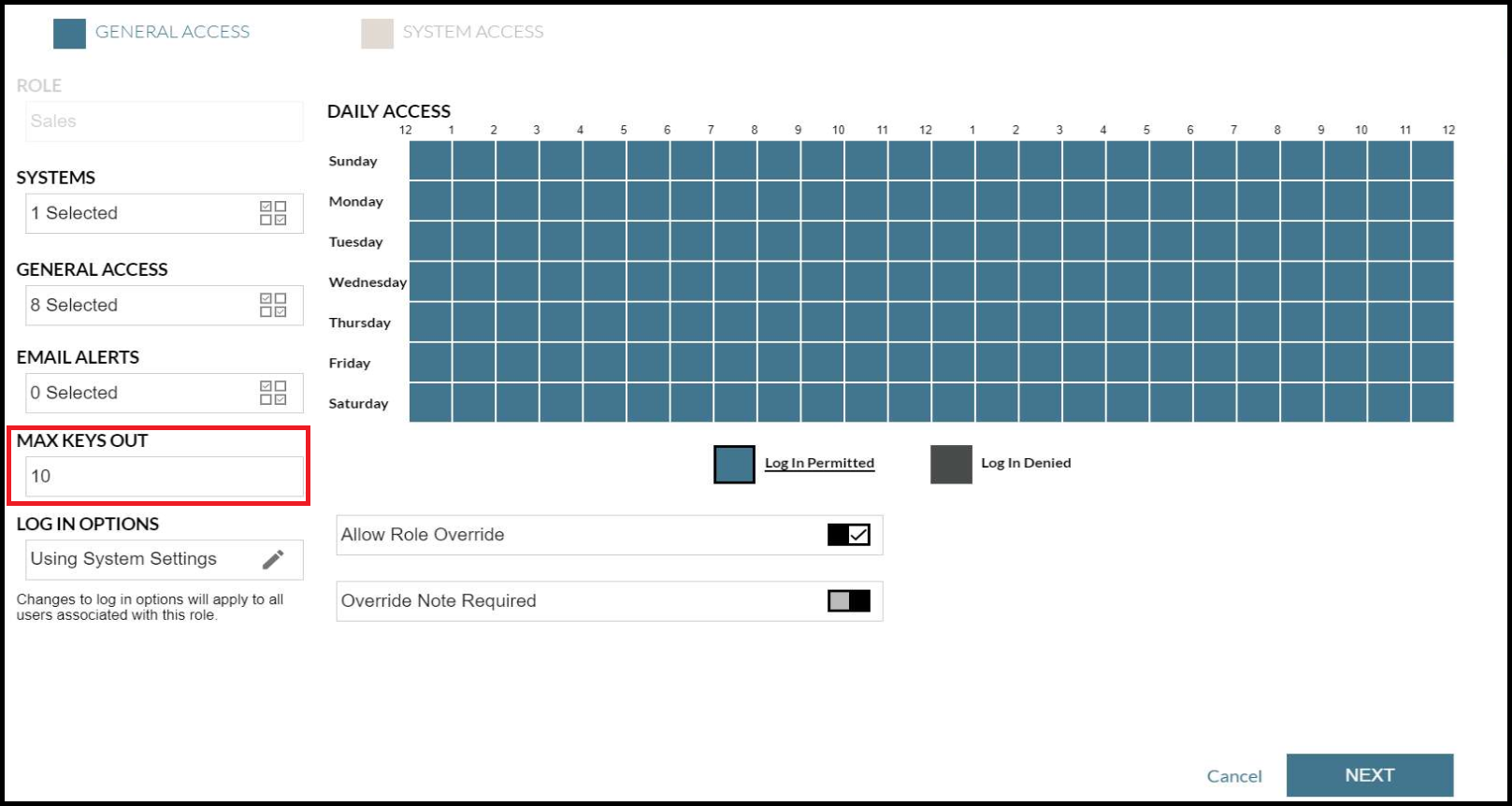
On the General Access screen, locate the Max Keys Out field.
-
Enter the number of keys you want that user to be able to check out, up to 99.
-
Click Next.
-
On the System Access screen, click Save Role.
Reasons to Use Checkout Limits
By setting up checkout limits, you can:
1. Prevent Key Hoarding
If one person has multiple keys checked out, others may be unable to access them when needed. Limiting how many keys someone can check out encourages users to return keys they no longer need instead of checking out multiple at once.
2. Improve Security
Restricting the number of keys out at once reduces the likelihood of loss or theft.
3. Increase Operational Efficiency
Smaller numbers of checked-out keys make discrepancies easier to identify and resolve.
Tips for Choosing the Right Limit
How do you figure out the appropriate number of keys users should be able to check out at once? The right number depends on your daily operations, but start by looking at each user’s role, the types of keys they handle, and how often they need access during a typical shift. Start conservatively and adjust as needed.
Employees who regularly handle multiple work orders, units, vehicles, or facility areas may need a higher limit than users who only need occasional access. For example, maintenance staff, dealership employees working with demo vehicles, or leasing teams managing shared apartment keys likely require more flexibility than administrative users.
Checkout limits may seem like a simple user setting, but they can make a noticeable difference in daily operations. By setting limits based on each user’s responsibilities, you can help keep keys available when they’re needed and secure when they’re not.
Frequently Asked Questions
How do I prevent staff from hoarding keys?
Setting reasonable checkout limits helps prevent users from accumulating more keys than they need. This practice encourages timely key returns, improves key availability, and helps maintain accountability.
How do I enforce key checkout limits?
Electronic key control systems such as KeyTrak allow administrators to set a maximum number of keys that users or user roles can have checked out at one time. Once a user reaches that limit, they must return a key before checking out another.
How many keys should an employee be able to check out at one time?
The appropriate key checkout limit depends on the employee's role and daily responsibilities. Consider how many keys they typically need during a shift, then start with a conservative limit and adjust as necessary.
Can I set different key checkout limits for different users?
Yes. You can assign checkout limits to individual users or entire user roles based on your operational needs. In KeyTrak key management systems, these limits can be configured for individual users or entire user roles.

